- Separate the attachment from the destination
- Create and review the reusable media template
- Plan the message link and page separately
- Prepare the send with the accepted template ID
- Verify media requirements on the actual route
- Keep preparation, delivery and page results separate
- Frequently asked questions
- Review one media-and-destination workflow
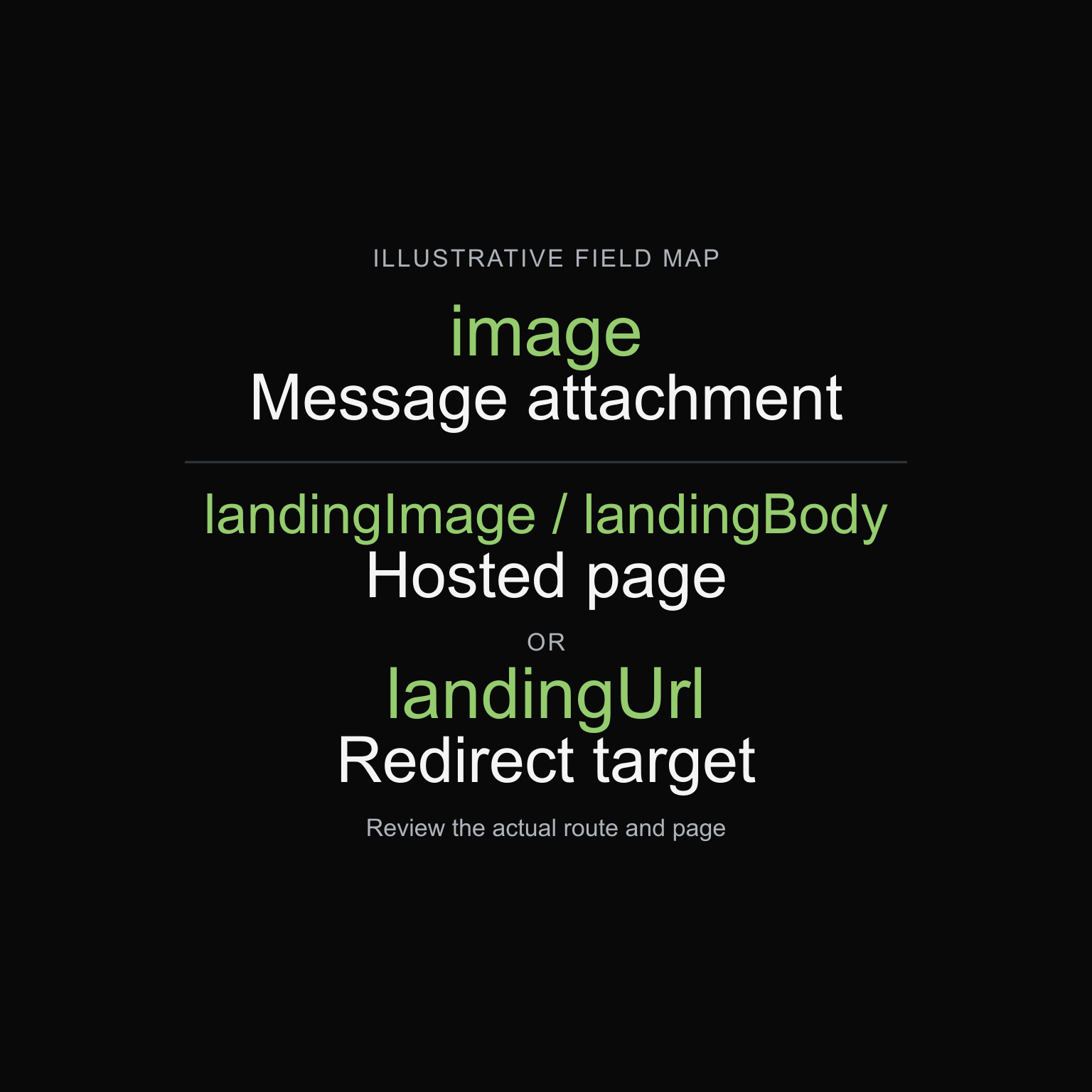
For a template-based Blackleaf MMS integration, put the message attachment in the template’s image field and treat the landing fields as a separate destination decision. Create and review the template, retain its usable ID, then prepare the send with the recipient and the destination content the workflow needs.
This guide is for developers connecting one repeatable customer notification to a reviewed message and linked page. Start with the current API reference and developer guide for authentication and the complete operation contract. For the business decision about whether media adds enough value, use the SMS versus MMS comparison.
The examples are inert documentation. No template, message or customer page was created through the messaging API for this article. URLs, recipient and IDs are fictional placeholders. The cover is a conceptual API workflow illustration, not a handset screenshot or customer result.
Separate the attachment from the destination
The current send reference exposes several image and landing fields. Their names do not make them interchangeable. The reviewed preparation and page-rendering paths use them for these different jobs:
| Field | Role in the reviewed workflow | Check before use |
|---|---|---|
image | Media associated with the message. Template lookup supplies the saved template’s image. | Review the asset with the message and confirm the actual sender and route support it. |
landingImage | An image for the linked page’s content. | Review its phone layout and destination context separately from the MMS attachment. |
landingBody | Body content for the linked page. The reviewed page path renders this as HTML. | Use trusted, reviewed content and confirm the active page layout. Avoid exposing private customer data. |
landingUrl | A destination target used by the reviewed redirect path. | Check the final destination and required recipient flow. Supplying it is not proof that a link was inserted into the message. |
Choose one destination design first: a hosted image/body page or a redirect to an approved destination. Do not assume that supplying every landing field will produce a combined layout. Campaign-linked messages can also use a campaign’s current page settings, so confirm that workflow separately from a direct notification.
Create and review the reusable media template
Use POST /messaging/create/template for the repeatable body and message image. Inspect accepted, bodyAccepted, imageAccepted, status and explanation; keep a usable ID only after a positive review. An HTTP success response alone is insufficient.
The following JSON illustrates a sandbox template request body. example.com does not represent a working Blackleaf asset. Replace the image only with media you are authorized to use and that the selected route can retrieve before any separately permitted rehearsal:
{
  "body": "Example Store: View the sample information at {{url}}",
  "image": "https://example.com/assets/message-card.jpg",
  "unsubscribeText": "Reply STOP to end",
  "simulateAi": false
}
Use https://api-sandbox.blackleaf.io or https://api-dev.blackleaf.io with normal workspace Bearer authentication and Content-Type: application/json. These hosts share sandbox messages and templates. Keep credentials on your backend and out of examples, screenshots and customer-visible errors.
The current reference gives boolean acceptance examples with string field types. Interpret the observed values explicitly; the string "false" must not pass a generic truthiness check. Simulated acceptance is test data rather than production content approval.
Plan the message link and page separately
The reviewed message preparation expands {{url}} using the workspace’s configured messaging domain and message reference. Confirm that domain and the supported customer page with Blackleaf. Do not assume landingUrl is a replacement for {{url}} in the message body or construct customer links from an assumed response field.
The example uses a stable message image and a different image on the linked page. That separation lets your team review what the recipient sees in the conversation and what appears after opening the link. A changed hosted asset can change what people see; retain the asset/version and review changes before reuse.
Keep the essential sender and customer action understandable in the text. Review the full destination for the message’s actual purpose. A service notice followed by an unrelated promotion still needs a purpose and permission review; see the API event-purpose planning sequence.
Prepare the send with the accepted template ID
After the permitted sandbox template review, this JSON illustrates a POST /messaging/send/text request body. The identifier is a placeholder for the returned sandbox template ID. The selected page design here is a landing image; it does not also request a redirect:
{
  "to": "2025550101",
  "templateId": "YOUR_ACCEPTED_SANDBOX_TEMPLATE_ID",
  "landingImage": "https://example.com/assets/page-flyer.jpg",
  "simulateAi": false
}
Template lookup supplies the saved body and message image for the authenticated workspace and environment. Passing a different image or body alongside that ID does not revise the saved template. Review changed message wording or media through the template workflow and deliberately select the replacement ID.
For a different page design, review the appropriate landingBody or landingUrl input and actual page behavior before enabling it. Keep private order details out of a broadly shareable destination. Optional contact data can initiate contact changes; omit it when the workflow does not need that write.
Use only confirmed variable mappings. The presence of an order or location object in an example does not establish an automatic placeholder for every property. The order-ready API walkthrough demonstrates the specific storeName mapping.
Verify media requirements on the actual route
The reviewed direct template-send path rejects an image value containing .gif, ignoring case. This is a string check, not a complete MIME-type, file-size, dimension or retrieval validator. Do not infer support for other formats from the absence of that substring or copy another provider’s media limits into Blackleaf’s contract.
- Input and access: confirm the media value expected by the configured route and that the asset can be retrieved when needed. A preview in your logged-in browser does not establish that the delivery path can access it. If the attachment URL expires, check that the saved URL will still work when you reuse the template. A standalone send uses the saved image value. If the URL needs to change, review the replacement through the template workflow and use the new accepted template ID.
- Format and size: confirm the supported file type, size, resolution and processing requirements with Blackleaf for the actual sender and route. This article does not establish a universal limit.
- Readable content: check the message image and linked page independently on the supported devices. Keep the essential action understandable if media is unavailable.
- Stable review: retain the chosen template, asset version, destination and review outcome together. A positive
imageAcceptedresult does not prove later retrieval or handset display.
For a simple order status that is clear in text, evaluate whether an image is needed at all. MMS is a format decision, not a delivery workaround or proof of improved sales.
Keep preparation, delivery and page results separate
The messaging sandbox can rehearse preparation and simulated status changes without delivering SMS/MMS to a handset or charging a delivery fee. Optional real AI validation can still be billed. Records, contact changes and configured HTTP callbacks can have real effects. Read the sandbox testing guide before any authorized rehearsal.
A simulated delivered result does not prove real carrier acceptance, media compatibility, production sender readiness or the complete customer page flow. Review the configured destination and recipient checks separately through the permitted process; do not use a real customer link merely to explore the integration.
Keep the request time, environment, template, asset/destination version and actual returned message identifier with the source event. The public send response schema lists id and status, while the reviewed implementation uses success, data.messageId and errors. Confirm the deployed representation before automatic processing. A timeout can leave the result uncertain; reconcile existing activity before another send.
Use the applicable message records and webhook contract for later status. A delivery event does not prove that the image displayed, the page opened, the recipient read the information or a purchase occurred.
Frequently asked questions
Does landingImage make a message MMS?
The reviewed workflow keeps the message’s image separate from landingImage, which supplies page content. Do not treat a landing image alone as proof that an MMS attachment was prepared or delivered.
Can I put a new message image on each send while reusing one template?
Template lookup loads its saved image and body. Supplying different values alongside the ID does not revise the template. Confirm the supported dynamic-content workflow before planning per-send message variations.
Does a landing URL automatically appear in the text?
Do not assume it does. The reviewed {{url}} expansion uses workspace messaging-domain configuration. The destination target and customer link are separate parts of the workflow.
Does a sandbox pass prove that the recipient page and MMS work in production?
No. The simulation does not establish real carrier or handset behavior, production approval or the complete recipient flow. Review each production dependency separately.
Review one media-and-destination workflow
Reviewed November 3, 2026 against the current public reference, version 2.8.4, and relevant template, send, message-preparation and page-rendering implementation. Local source and public documentation do not establish account-specific production behavior. The examples have not been executed.
Blackleaf requires explicit recipient consent and age confirmation before texting. In the message flow, the intended recipient selects the birthday on file; never disclose the saved birthday. Template acceptance, media selection and a linked page do not replace these requirements.
Bring the message purpose, source event, sender, approved media, destination design and expected result to an API integration review. Keep Blackleaf dispensary Texting as the communication decision: it works with supported existing POS systems without a POS switch. Confirm the supported connection and actual workflow before activation.